Setting up the VR Coach® smart system for private practices
How to install the VR Coach apps
Pico devices
Welcome! Follow this guide to install and connect the VR Coach app on your Pico headset and your tablet/smartphone.
- Setting up the Pico headset
- Purchase a Pico headset and create a Pico account.
- Set up the headset according to the instructions from Pico.
- Receive an invitation to the app.
- You will receive an invitation link to the app from us.
- Install the app on the headset.
- Click on the received link.
- The VR Coach for private practices app will automatically appear under “Uninstalled Apps.”
- If not, restart the Pico headset and check again.
- Install the app directly on the headset.
- Install the client app on your smartphone/tablet.
- Download the client app to your smartphone or tablet either through the Google Play Store or from our website.
- The installation of the client app only works on Android devices with a current Android version (from version 9) and a processor with 64-bit architecture.
Meta devices
Welcome! Follow this simple guide to install and connect the VR Coach app on your Meta headset and your tablet/smartphone.
- Setting up the Meta headset
- Purchase a Meta headset and create a Meta account.
- Additionally, you will need a Meta Horizon account.
- Download the Meta Horizon app to your smartphone/tablet.
- Connect the headset to the app following the Meta instructions in the headset or in the app.
- Receive an invitation to the app.
- You will receive a release channel link from us.
- Click on the link and accept the invitation.
- Install the app on the headset.
- Open the library in the headset.
- Install the VR Coach app for private practices.
- Install the client app on your smartphone/tablet.
- Download the client app to your smartphone or tablet either through the Google Play Store or from our website.
- The installation of the client app only works on Android devices with a current Android version (from version 9) and a processor with 64-bit architecture.
How to connect the client app to the VR app
You can log in either via the client app or directly in the VR app.
For the first test, we recommend trying out the controls directly in the glasses. Later, especially with patients, we recommend using the client app for a more stable connection.
Login via the client app
Start the client app on the tablet or smartphone.
Next, open the VR app in the headset.
During the startup process, the connection between both devices will bn established automatically.
❗ Note: If no connection is made, ensure that both devices are on the same Wi-Fi network. Then restart from step 1.Once you are in the lobby of the VR app, the user icon in the client app becomes active (no longer grayed out).
When you first enter the lobby, a tutorial window appears, explaining the basic controls in the VR environment.
– Once you have completed the tutorial, you can access it again at any time through the selection menu.
– If you skip it, it will be shown again the next time you start the app.Tap the user icon in the client app to log in with the account details provided by us.
Wait until all scenarios are fully downloaded.
You can now start the session.
💡 Important Note: In order for the connection to work correctly, the client app must be opened during the splash screen (before the lobby appears). Only then will the user icon become active, and the login will be possible.
Login directly in the VR app
1. Start the VR app in the headset.
2. Once you’re in the lobby, press the in-game menu button on the controller to open the selection menu.
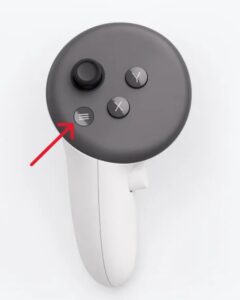

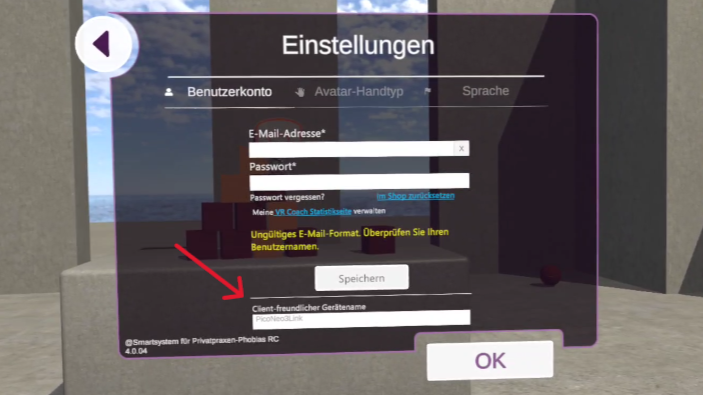
3. Navigate to “Settings” and enter the account details provided by us.
4, Wait until all scenarios are fully downloaded.
5. You can now start the session without the client app.
💡 Do you want to use the client app later?
- Completely close the VR app.
- Open the client app on the tablet.
- Then, open the VR app again in the headset.
- The connection and login will occur automatically.
6. During a session, you can always reopen the menu selection via the in-game menu to access interaction options and various settings within the scenarios.
Note on using multiple VR headsets in the same Wi-Fi network
- If multiple VR headsets are on the same Wi-Fi network as the tablet with the client app, a selection overview will appear in the app.
- Select the headset by the name displayed in the VR headset.
- The device name can be individually renamed in the settings of the VR app, for example, to better assign it to individual clients.
- As long as no individual name has been assigned, the device will be displayed by default with the IP address and port number.
Current software description.
Detailed description of activities, settings, and interaction options within the scenes.
Most scenarios begin in a standing position. However, there are also chairs and sofas in many scenarios. If you want the patient to sit down, you need to provide a physical chair for them to sit on.
FAQ Statistics Page
How do I register for the statistics page?
In the VR Coach smart system app, you will find the user icon in the top right corner. There is a link to the statistics page there.

If you are already logged into the app, you will be automatically redirected and logged in. Otherwise, you will be taken to the login page, where you can sign in using the same login credentials as in the app.
What can I do on the statistics page?
The statistics page provides a clear overview of all completed therapy sessions – including the date, duration, and scenario used. Each session can be individually named – for example, with the initials of the relevant person or an internal code.
Clicking on a session opens a detailed view with all completed or pending questionnaires for that session.

💡 Important: Use the same session name for all sessions of the same person so that the associated questionnaires and diagrams can be correctly assigned and displayed.
🔧 You can adjust the session name at any time – either directly in the overview list or within the detail view at the top left.


How can I create my own questions?
Under the “Edit Questions” menu, you can create as many custom questions as you like. Simply click on “Add New Question,” enter your question, and save it. These questions will then automatically appear in every new session and can be filled out there.

How are charts created?
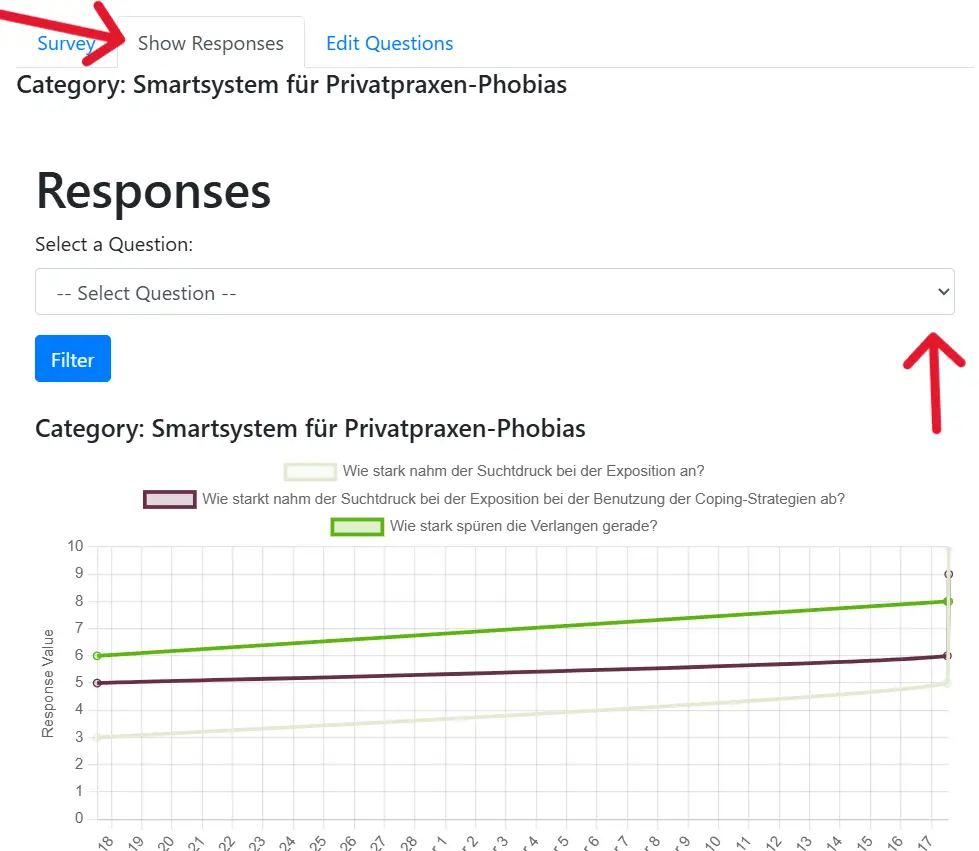
As soon as at least two sessions with the same session name and completed questionnaires are available, diagrams for visualizing the answers will be automatically generated.
Click on the respective session and select “Show Responses“. There, you will see the diagram as well as a list of all the entered responses. In the upper part of the view, you can also specifically select a particular question to analyze the trend of that response across multiple sessions.
If you don’t find answers here, we are happy to assist you by phone or email!