Help for Private Practices / Text-to-Speech
Text-to-Speech (TTS)
In some scenarios, avatars can be displayed as guests. In the scenario descriptions, this is indicated by “Let avatars speak individually with patients”.
1
Open the TTS Window
For avatars to appear in the upper list, they must be displayed in the scenario. If no avatars are visible, the list remains empty.
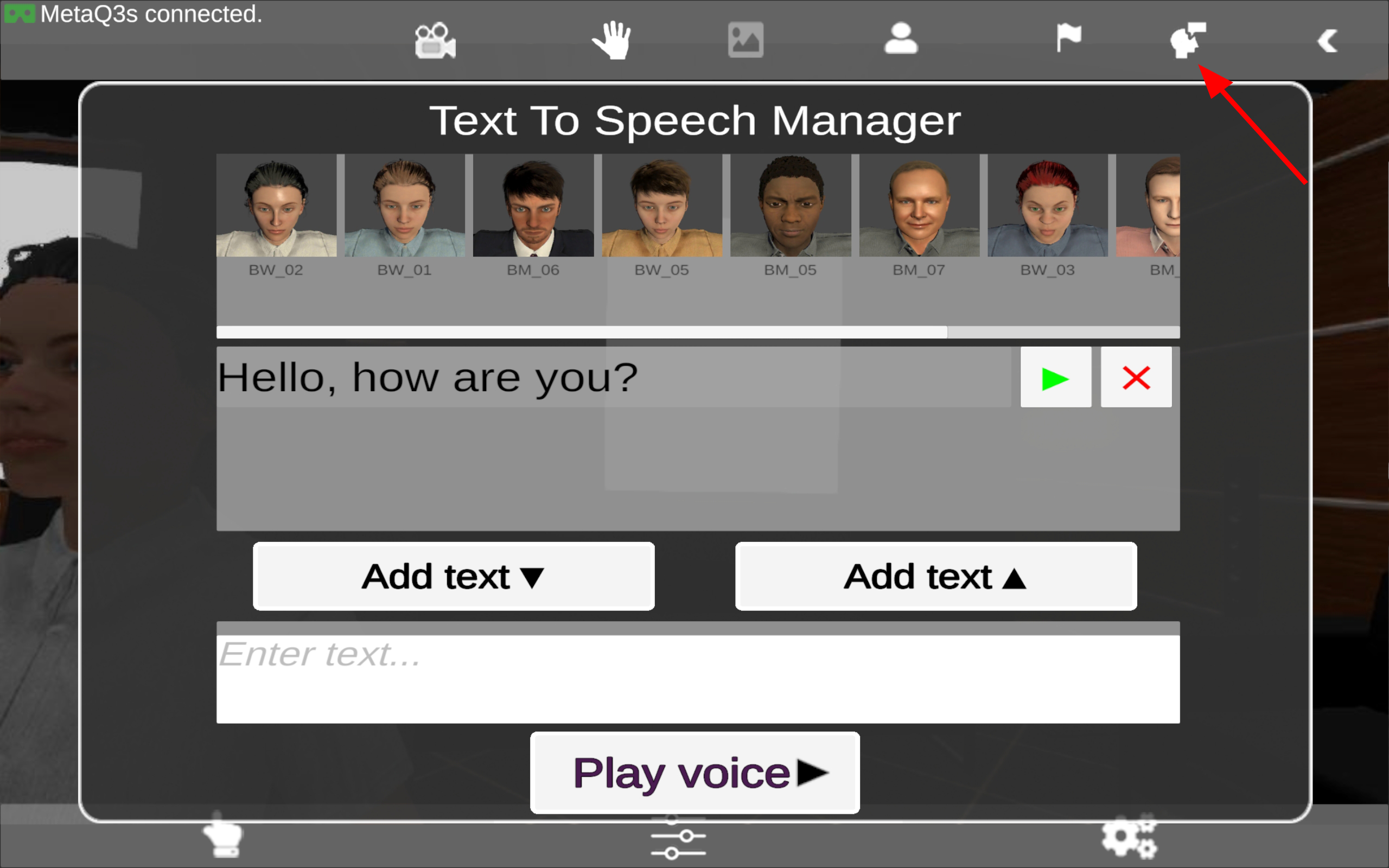
Click the TTS icon (avatar with speech bubble).
2
Select an Avatar
- In the upper area of the TTS window, you will see a selection of avatars.
- Click the avatar that should speak. The selected avatar is highlighted.
- Use the horizontal slider to scroll through all available characters.
3
Enter Text
- Type your desired text into the large white input field at the bottom.
- Click “Add Text”
– to add the text to the list above, or
– to move an existing list entry back into the white input field.
- In the list, the text appears with a green play button for playback and a red X for deleting.
Set the Tone
The avatars’ voices are AI-generated. You describe how a text should be read aloud in square brackets at the very beginning of the text.
Examples:
[calm and friendly] Good morning, it’s nice to have you here.
[annoyed and loud] Can’t you hurry up? I’ve been waiting forever!
[whispering] Look, over there.
Without a specification in brackets, the AI determines the tone automatically.
4
Playback
To play a text, click the green play button next to the desired text.
The selected avatar reads the text aloud.
Additional Tips:
- Prepare frequently used texts in advance and save them as a text file. During the session, you can quickly paste them in without having to type.
- The voices are AI-generated and match the selected avatar. You set the tone with a description in square brackets at the beginning of the text.
- The function is particularly suitable for conversation training, role-plays and confrontation with specific statements.
No Sound?
- Check whether the volume control on the VR headset is also turned up.
Switch the avatar and try again.